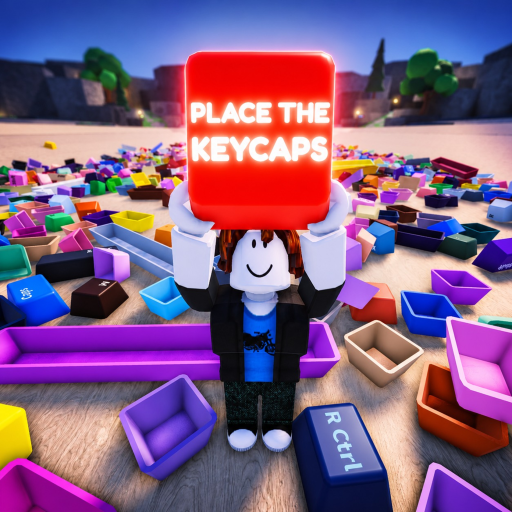
Place the Keycaps Input and Camera Reset
Use Ctrl, careful movement, and server checks to recover input or camera problems in Place the Keycaps without losing solved keycap rows.
Start with the official controls
The official Place the Keycaps Roblox listing names Ctrl as the mouse-unlock control and Q as the throw-keycap control. Those two inputs are the first recovery tools when camera, cursor or object selection feels wrong. Do not solve an input problem by tearing apart completed rows.
If the mouse is trapped, press Ctrl and click back into the play area. If the camera blocks the board, step away and re-approach from a clearer angle. If a cap is selected but hard to place, set it down near the board and compare the target slot again.
| Input problem | Recovery |
|---|---|
| Cursor locked | Press Ctrl |
| Camera too close | Step away and reset the viewing angle |
| Cap blocking view | Move it once with Q to a known side |
| Touch controls visible | Use tray/counter checks instead of desktop prompts |
| Repeated failure | Try a fresh server after recording the state |
Respect device differences
The one-hour mobile gameplay video shows touch controls, a held-cap tray and a visible counter. The full guide transcript supports exact Place the Keycaps play context. A desktop player may see keyboard prompts, while a mobile player relies more on on-screen controls and tray feedback.
Keep the recovery path device-specific. Desktop players should test Ctrl and Q. Mobile players should check the held tray, movement pad and jump button. Both should inspect the board before assuming a beta bug.
Reset without losing progress
Before leaving a server, write down the last solved cluster and the last uncertain cap. If you rejoin, rebuild from anchors rather than from memory of the old pile. Because Place the Keycaps is beta, an input issue may disappear after a fresh server, but the player should preserve as much solved information as possible.
Input FAQ
Which key unlocks the mouse?
Ctrl, according to the official description.
Which key throws a cap?
Q, and it should be used sparingly.
Are mobile controls different?
The reviewed mobile video shows touch movement, jump, tray and counter UI instead of desktop key prompts.
Should I report input bugs?
Yes, when the issue repeats after Ctrl recovery and a clean server test.
Input recovery should be gentle because the board itself is your progress record. Do not jump to a reset while holding an uncertain cap over the pile. Put the cap in a staging area, recover Ctrl or camera state, then return to the same slot. If touch controls are active, use the tray and counter as feedback; if desktop controls are active, confirm the keyboard prompt and cursor behavior.
Camera problems often look like object problems. A cap may seem unplaceable because the view hides its real width or because a nearby large key covers the target. Rotate or step back before throwing. If the cap is actually obstructing the board, one Q throw to a known side can help. Multiple throws usually make the final search harder.
For repeat input issues, change one condition at a time. Try a calmer server, then a different device context, then a fresh client session if needed. Keep the official controls as the baseline. The page should help players preserve solved rows while recovering control, not encourage them to restart every time the beta interface feels awkward.
When camera recovery succeeds, do a small confirmation placement before continuing at full speed. Choose a cap with an obvious slot, place it, and watch whether the board accepts it or the counter changes. If that works, the issue was likely view or cursor state. If it does not, stop and inspect the client state before moving solved pieces. This protects the board from unnecessary resets and gives you a clear report if the problem repeats.
A camera reset should end with a board scan. Look at the row you were solving, confirm anchors stayed seated, and make sure the held cap is still the one you intended to place. That small scan prevents an input fix from becoming a layout error. If the same camera state returns immediately, switch servers or devices before disturbing additional clusters.
For mobile players, repeat the same principle with touch controls: stop moving, center the view, confirm the held-cap tray, then approach the target slot slowly. If the tray shows the wrong cap, return it to staging before testing placement. The goal is to recover control while preserving clear evidence of what changed.