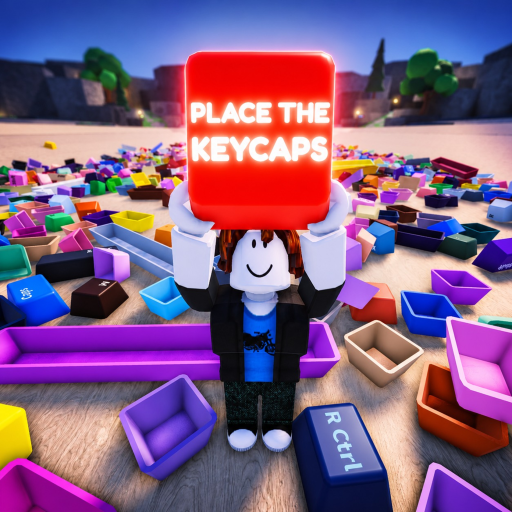
Place the Keycaps Sorting Controls
Desktop has two confirmed bindings—Q throws and Ctrl unlocks the mouse—while mobile uses visible touch movement, jump, selection, cycle, and held-tray controls shown in the reviewed gameplay.
Sorting Controls: direct answer
Desktop has two confirmed bindings—Q throws and Ctrl unlocks the mouse—while mobile uses visible touch movement, jump, selection, cycle, and held-tray controls shown in the reviewed gameplay.
Sources reviewed: Place the Keycaps - Roblox and Place the Keycaps - 1 Hour Gameplay.
Sorting Controls: verified facts
| Fact | Evidence status |
|---|---|
| Q to throw | Verified source term |
| Ctrl to unlock mouse | Verified source term |
| selection outline | Verified source term |
| held tray | Verified source term |
| 0 / 58 | Verified source term |
Sorting Controls: player workflow
Desktop control loop
Use Ctrl when you need a free cursor for interface elements. Center the selection on a cap, confirm that it is actually held, read its legend, and move toward the candidate slot. Q is a rejection tool: throw only when the current hold is wrong or blocks the next comparison. Do not mash Q while rotating the camera, because the official description assigns it a gameplay action.
Mobile control loop
At 00:30 and 05:00, the reviewed recording shows touch movement on the left, jump on the right, a center selection cursor, a cycle control, and the held-cap strip near the bottom. Shop and Powers are visible interface buttons, but the silent video does not explain their economy or mechanics. Select slowly enough to see the outline, then verify the held legend before walking to the board.
Placement confirmation
Use three signals: the expected board slot, the cap leaving the held tray, and the x/58 counter. A counter change is the strongest visible progress signal in the recording. If the cap leaves your hand but the count stays fixed, it may have been dropped or rejected rather than sorted.
Device-specific troubleshooting
On desktop, a locked cursor is solved first with Ctrl; a lost cap is checked against Q. On mobile, enlarge the camera view, re-center the selection outline, and use the visible cycle control rather than assuming keyboard shortcuts. Rejoin only after checking the current prompt because this is a beta and bindings can be tweaked.
Efficient handling
Keep the camera oriented so the held tray and target board region remain visible. Work in small groups, avoid throwing unresolved caps into the main pile, and use screenshots whenever the counter advances. These habits reduce input errors without making unsupported claims about hidden rarity or automatic snapping.
Sorting Controls: verification checklist
- Use Ctrl to release the desktop cursor when interface buttons cannot be selected.
- Treat Q as throw, not confirm, cancel, redeem, rotate, or interact.
- Center the selection and wait for the visible outline before moving away from the pile.
- Read the held tray to confirm which legend was actually selected.
- Keep the target board slot visible while approaching so a dropped cap is obvious.
- On mobile, use the current cycle and touch prompts because the silent video cannot name every icon.
- Confirm success through the board position, empty held slot, and higher counter together.
- If only the held tray changes, search the ground before selecting another cap.
- If x/58 does not change, compare cap width and legend with the open position again.
- Record a beta control regression with device, time, server, and screenshot.
- Test camera movement with empty hands before diagnosing selection or throw behavior.
- Keep unresolved caps beside one landmark so a thrown object can be recovered quickly.
- After an update, verify the on-screen prompt before publishing a replacement binding.
- Do not infer what Shop or Powers does from its label; test and document the visible result separately.
- Use the x/58 change as the placement signal because animation or sound can vary during beta updates.
Treat Q as a workspace reset, not a default interaction. A controlled throw should put one obstruction in a known side area. If the piece vanishes from view, stop throwing and rebuild the staging zone before continuing the route.
If Q creates a mess, stop using it for the rest of that cluster. Rebuild a clean staging area, use Ctrl to recover cursor state when needed, and return to direct placement. The best control use is the one that leaves the board easier to inspect.