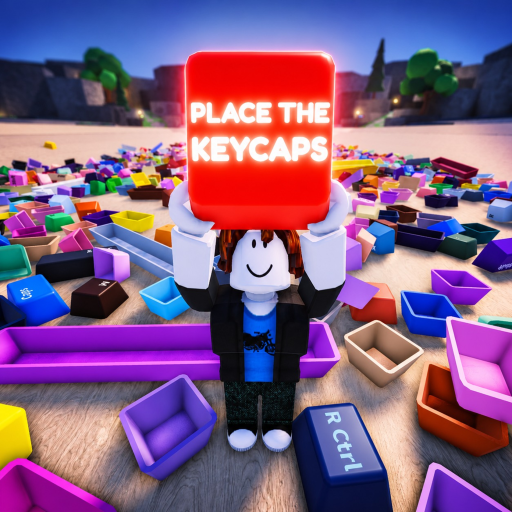
Place the Keycaps のモバイルタッチ操作
モバイル移動パッド、ジャンプ操作、選択カーソル、保持中キーキャップのトレイ、ショップ、パワー、サイクル操作、ボードカウンターについての日時付きリファレンスです。
確認したビルドで表示されるモバイル HUD
00:30 の無音の 1 時間モバイルゲームプレイ録画では、左側の移動パッド、右側の大きなジャンプボタン、中央の選択カーソル、SHOP と POWERS ボタン、右側のサイクル操作、下部近くの保持中キーキャップの帯、そして右上のボードカウンターが確認できます。その序盤のフレームではカウンターは 0 / 58 と表示されています。
これはタイムスタンプ付きの視覚的証拠であり、文字起こしではありません。動画には有用な音声がないため、隠れた仕組みを立証したり、各アイコンの意味をすべて説明したりはできません。公式 Roblox 掲載ページが、作品の同一性とベータ状態の情報源のままです。
| HUD エリア | 見えている用途 | 安全な使い方 |
|---|---|---|
| 左の円 | キャラクター移動 | 回り続けるのではなく、山の中を短く往復する |
| 右の矢印 | ジャンプ | 物体やボード端で移動が塞がれたときだけ使う |
| 中央の点 | 選択フォーカス | 輪郭が出るまでキーの上で少し止まる |
| 下部のキーキャップ帯 | 保持中のピース | ボードに近づく前に刻印を読む |
| 右上カウンター | ボード進行状況 | 配置が確定する前後で比較する |
| サイクル操作 | 画面上の操作切り替え | 繰り返す前に、低リスクな 1 件で試す |
| Shop/Powers | 別のインターフェース領域 | 配置確定と混同しない |
ボードへ向かう前に先に選択する
05:00では、プレイヤーがボードのそばにおり、下部の帯には文字キーや修飾キーを含む複数の保持中キーキャップが見えます。選択されたオブジェクトには見える輪郭が付きます。ここから、意図的な流れが裏づけられます。カーソルを中央に合わせ、輪郭を確認し、保持中の刻印を読み、それから一致するボード領域へ近づいてください。
移動しながら、重なっている複数のオブジェクトの上をカーソルで掃くのは避けてください。密集した山では少し止まり、輪郭で狙ったキーキャップを特定させます。トレイが予想外に変わった場合は、山から離れ、何かを置く前に保持中の刻印をすべて読み直してください。
配置は 2 つの合図で確認する
ボード上のスロットそのものと右上カウンターの両方を使ってください。およそ 20:00 では、以前のフレームでゼロだったあと、確認した動画では 1 / 58 が表示されています。カウンターの増加は進行成功を裏づけますが、どのキーキャップが受理されたかまでは特定しません。対象スロットが埋まっていることも確認してください。
ボードの見た目は変わったのにカウンターが変わらない場合は、一度止まり、さらにキーキャップを動かす前にサーバー更新を待ってください。はっきりしたスロットがないのにカウンターだけ変わった場合は、直前の配置と保持中トレイを見比べてください。不一致を報告する際は、ビルド日付を記録してください。
デスクトップ向け説明は分けて扱う
公式説明では、投げる操作に Q、キーボード操作時にマウスを解除する操作に Ctrl が案内されています。タッチスクリーンでは、それらのキーの代わりにアイコンで同等の操作が出る可能性があります。モバイルプレイヤーに Q を押すよう案内してはいけません。また、ラベルのないタッチアイコンを、現行ビルドで確認せずに確実な「投げる」ボタンだと断定してはいけません。
このモバイル参照は 2026 年 7 月 14 日に確認しました。特にカウンター、保持中トレイ、サイクル操作の位置が変わった場合は、ベータ更新後に HUD を再確認してください。