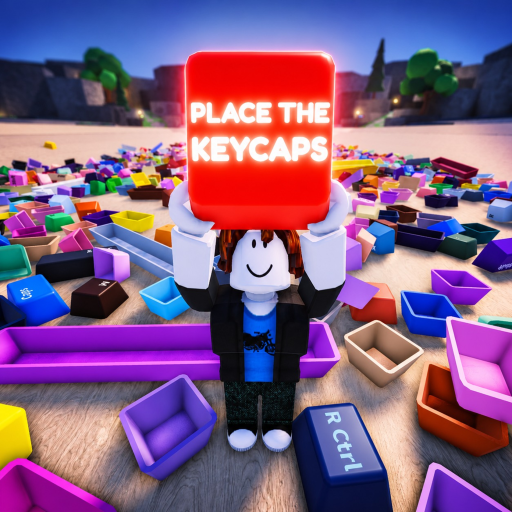
Mobile-Touch-Steuerung von Place the Keycaps
Eine datierte Referenz für das mobile Bewegungsfeld, die Sprungsteuerung, den Auswahlcursor, die Leiste für gehaltene Keycaps, Shop, Powers, die Zyklussteuerung und den Brettzähler.
Im überprüften Build sichtbares mobiles HUD
Die stumme einstündige Mobile-Gameplay-Aufnahme bei 00:30 zeigt links ein Bewegungsfeld, rechts eine große Sprungtaste, in der Mitte einen Auswahlcursor, SHOP- und POWERS-Schaltflächen, rechts eine Zyklussteuerung, nahe dem unteren Rand einen Streifen für gehaltene Keycaps und oben rechts einen Brettzähler. Der Zähler zeigt in diesem frühen Frame 0 / 58.
Dies ist visuelle Evidenz mit Zeitstempel, kein Transkript. Das Video enthält keine nützliche Sprache und belegt daher weder versteckte Mechaniken noch erklärt es jedes Symbol. Die offizielle Roblox-Seite bleibt die Quelle für Identität und Beta-Status.
| HUD-Bereich | Sichtbarer Zweck | Sichere Nutzung |
|---|---|---|
| Linker Kreis | Charakterbewegung | Laufe in kurzen Durchgängen durch den Haufen, statt dich dauerhaft zu drehen |
| Rechter Pfeil | Springen | Nur verwenden, wenn ein Objekt oder der Brettrand die Bewegung blockiert |
| Mittlerer Punkt | Auswahlfokus | Kurz über einer Taste bleiben, bis ihre Umrandung erscheint |
| Unterer Keycap-Streifen | Gehaltene Teile | Lies die Beschriftungen, bevor du dich dem Brett näherst |
| Zähler oben rechts | Brettfortschritt | Vor und nach einer bestätigten Platzierung vergleichen |
| Zyklussteuerung | Sichtbare Interaktionssteuerung | Erst an einer risikoarmen Auswahl testen, bevor du es wiederholst |
| Shop/Powers | Getrennte Interface-Bereiche | Nicht mit der Platzierungsbestätigung verwechseln |
Vor der Bewegung zum Brett erst auswählen
Bei 05:00 steht der Spieler neben dem Brett, und im unteren Streifen sind mehrere gehaltene Keycaps sichtbar, darunter Buchstaben- und Modifikator-Beschriftungen. Das ausgewählte Objekt erhält eine sichtbare Umrandung. Das stützt einen bewussten Ablauf: Cursor zentrieren, Umrandung bestätigen, die gehaltene Beschriftung lesen und dann den passenden Bereich des Bretts ansteuern.
Vermeide es, den Cursor während der Bewegung über mehrere überlappende Objekte zu ziehen. Bei einem dichten Haufen kurz anhalten und die gewünschte Keycap durch die Umrandung identifizieren lassen. Wenn sich die Leiste unerwartet ändert, entferne dich vom Haufen und lies jede gehaltene Beschriftung erneut, bevor du irgendetwas platzierst.
Platzierung mit zwei Signalen prüfen
Nutze sowohl den Brett-Slot selbst als auch den Zähler oben rechts. Ungefähr bei 20:00 zeigt das überprüfte Video 1 / 58, nachdem frühere Frames noch null gezeigt hatten. Ein Anstieg des Zählers spricht für erfolgreichen Fortschritt, sagt aber nicht, welche genaue Keycap akzeptiert wurde. Bestätige zusätzlich, dass der Ziel-Slot gefüllt ist.
Wenn sich das Brett sichtbar verändert, der Zähler aber nicht, pausiere kurz und lass den Server aktualisieren, bevor du weitere Keycaps bewegst. Wenn sich der Zähler ohne offensichtlichen Slot ändert, vergleiche die letzte Platzierung und die Leiste der gehaltenen Teile. Notiere beim Melden einer Abweichung das Build-Datum.
Desktop-Anweisungen getrennt halten
In der offiziellen Beschreibung steht Q zum Werfen und Ctrl zum Entsperren der Maus für Tastaturspiel. Ein Touchscreen kann entsprechende Aktionen über Symbole statt über diese Tasten anbieten. Sage mobilen Spielern nicht, sie sollen Q drücken, und bezeichne ein unbeschriftetes Touch-Symbol nicht ohne Test im aktuellen Build als garantiertes „Wurf“-Symbol.
Die mobile Referenz wurde am 14. Juli 2026 geprüft. Prüfe das HUD nach Beta-Updates erneut, besonders wenn sich Zähler, Leiste der gehaltenen Teile oder Zyklussteuerung verschieben.