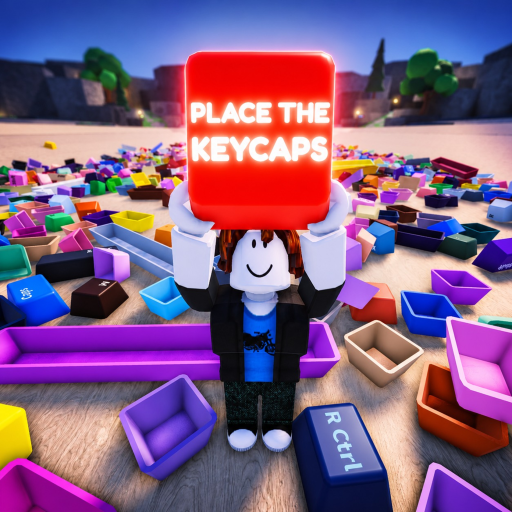
Contrôles Q et Ctrl de Place the Keycaps
Une référence PC ciblée pour Q afin de lancer, Ctrl pour déverrouiller la souris, la confirmation de sélection, la gestion des tas et les vérifications de contrôle selon l'appareil.
Contrôles clavier de première main
La fiche officielle de Place the Keycaps indique Q pour lancer et Ctrl pour déverrouiller la souris. Ce sont les deux raccourcis PC qui peuvent être publiés comme faits de première main. La fiche indique aussi que l'expérience est en bêta, donc l'invite affichée à l'écran doit faire foi si une mise à jour ultérieure modifie un raccourci.
| Touche | Action publiée | Vérification pratique |
|---|---|---|
| Q | Lancer | Faites face à une zone de dépôt dégagée et testez avec une touche connue en double ou une touche sélectionnée |
| Ctrl | Déverrouiller la souris | Vérifiez que le curseur peut atteindre les contrôles de l'interface, puis revenez au jeu |
| Déplacement/entrée | Suivez Roblox et les invites en direct | Ne copiez pas une icône tactile mobile dans la liste des touches PC |
Créez une zone de lancer Q sûre
Lancer n'est utile que si cela réduit la confusion des tas. Choisissez un bord éloigné du plateau du clavier et faites-en la zone Q temporaire. Ne lancez jamais vers des emplacements remplis, le tas principal non trié ou le groupe actif d'un autre joueur. Lisez d'abord la légende des touches ; un modificateur incertain appartient à une zone d'inspection, pas à une zone de défausse.
Après quelques lancers, faites pivoter la caméra et vérifiez que la zone ne contient toujours que des touches déplacées volontairement. Si une touche nécessaire a été lancée, récupérez-la avant d'en ajouter d'autres. L'objectif est de réduire la zone de recherche, pas de créer un second tas incontrôlé.
Utilisez Ctrl sans perdre l'objet sélectionné
Déverrouillez la souris lorsqu'un élément de l'interface a besoin du curseur, puis vérifiez la touche sélectionnée et l'état de prise avant de continuer. Évitez d'appuyer sur plusieurs commandes pendant un pic de latence. Si le focus ne revient pas, éloignez-vous du tas, utilisez Ctrl une fois et vérifiez si l'état du curseur ou de la caméra change.
L'enregistrement mobile horodaté à 05:00 montre pourquoi le contexte de l'appareil compte : on y voit le déplacement tactile, le saut et le plateau des touches tenues au lieu des invites PC pour Q et Ctrl. Il confirme le flux de sélection et de plateau, pas le raccourci clavier lui-même.
Diagnostiquer un problème de contrôle
Consignez l'appareil, la méthode d'entrée, l'heure du serveur, la touche sélectionnée, l'invite visible et le résultat. Testez une action dans une zone ouverte. Si Q ne fait rien, vérifiez que le chat ou un autre champ de texte n'a pas le focus et qu'une touche est bien sélectionnée. Si Ctrl ne déverrouille pas le curseur, vérifiez le mode d'entrée Roblox actuel et les paramètres actifs.
N'installez pas de macro ni d'outil non pris en charge pour automatiser le lancer. Un rapport de bug propre avec les détails sur l'appareil et les invites est plus utile pendant la bêta, et cela évite de transformer un problème de contrôle en problème de compte ou de fair-play.