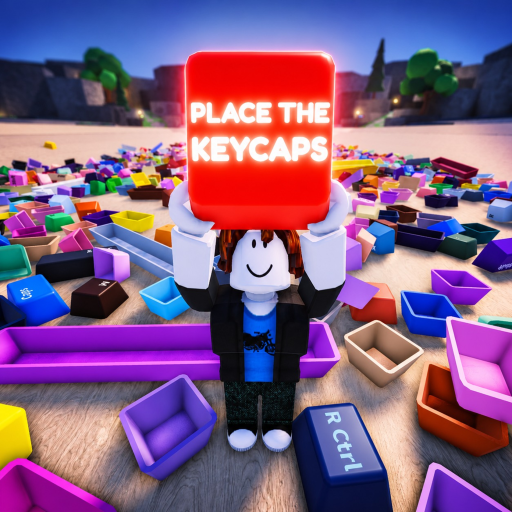
Controles Q y Ctrl de Place the Keycaps
Una referencia de escritorio centrada en Q para lanzar, Ctrl para desbloquear el ratón, la confirmación de selección, la gestión de montones y las comprobaciones de control según el dispositivo.
Controles de teclado oficiales
La ficha oficial de Place the Keycaps indica Q para lanzar y Ctrl para desbloquear el ratón. Estas son las dos asignaciones de escritorio que pueden publicarse como hechos de primera mano. La ficha también marca la experiencia como beta, así que el aviso activo en pantalla debe prevalecer si una actualización posterior cambia una asignación.
| Tecla | Acción publicada | Comprobación práctica |
|---|---|---|
| Q | Lanzar | Mira hacia una zona de preparación despejada y prueba con una keycap duplicada conocida o una keycap seleccionada |
| Ctrl | Desbloquear el ratón | Confirma que el cursor puede alcanzar los controles de la interfaz y luego vuelve al juego |
| Movimiento/entrada | Sigue Roblox y los avisos en pantalla | No copies un icono táctil móvil en la lista de teclas de escritorio |
Crea una zona segura de lanzamiento con Q
Lanzar solo es útil cuando reduce la confusión de los montones. Elige un borde alejado del tablero del teclado y conviértelo en la zona temporal de Q. Nunca lances hacia ranuras llenas, el montón principal sin ordenar ni el grupo activo de otro jugador. Lee primero la leyenda de teclas; un modificador incierto pertenece a una zona de inspección, no a una zona de descarte.
Después de cada pocas lanzadas, gira la cámara y confirma que la zona todavía contiene solo keycaps movidas deliberadamente. Si se lanzó una keycap necesaria, recupérala antes de añadir más. El objetivo es una superficie de búsqueda más pequeña, no un segundo montón sin control.
Usa Ctrl sin perder el objeto seleccionado
Desbloquea el ratón cuando un elemento de la interfaz necesite un cursor y, después, verifica la keycap seleccionada y el estado de sujeción antes de continuar. Evita pulsar varios controles durante un pico de lag. Si el foco no vuelve, aléjate del montón, usa Ctrl una vez y comprueba si cambia el estado del cursor o de la cámara.
La grabación móvil con marca de tiempo en 05:00 muestra por qué importa el contexto del dispositivo: se ven el movimiento táctil, el salto y la bandeja de keycaps sostenidas en lugar de los avisos de escritorio para Q y Ctrl. Corrobora el flujo de trabajo de selección y bandeja, no la asignación del teclado en sí.
Diagnostica un problema de control
Registra el dispositivo, el método de entrada, la hora del servidor, la keycap seleccionada, el aviso visible y el resultado. Prueba una acción en un área abierta. Si Q no hace nada, verifica que el chat u otro campo de texto no tenga el foco y que realmente haya una keycap seleccionada. Si Ctrl no desbloquea el cursor, comprueba el modo de entrada actual de Roblox y la configuración activa.
No instales un macro ni una herramienta no compatible para automatizar el lanzamiento. Un informe de error limpio con detalles del dispositivo y de los avisos es más útil durante la beta, y evita convertir un problema de control en un problema de cuenta o de juego limpio.